
TicTalk, a polyglot word clock
From the Drawer to the Gift Package: The Story of TicTalk
Every maker has a project like this. You order the parts, get excited when they arrive, and then put them straight into a drawer where they sit for years.
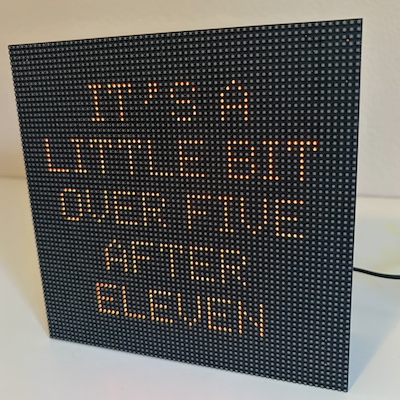
TicTalk started back in 2022 on our way home from California. We stopped by a friend’s house, and he showed us a cool word clock he’d built in Swiss German. He used an LED matrix behind a physical stencil mask to light up the words. It looked fantastic and inspired me on the spot. His single-language physical mask setup was super clean, but since I wanted my clock to be multilingual, a static front stencil wouldn’t work. Trying to cram multiple languages onto one physical mask was just not feasible.
That got me thinking: why not skip the mask and write the words directly onto a high-resolution 64x64 LED matrix using code? Standard 64x64 matrices have plenty of pixels for clean text, and instead of a Raspberry Pi like my friend used, I could run the whole thing on an ESP32 micro-controller, which should have plenty of compute power to do the job. And dot matrix fonts are kind of retro and cool looking.
When I got home, I couldn’t wait to test the core logic. I had a little M5StickC Plus ESP32 module sitting around, so I hacked together a base word clock prototype in English and Spanish, where you just clicked its physical button to toggle between languages. (That early code still lives over on my GitHub repository.)
Next, I ordered the real hardware from Electrodragon: a 64x64 HUB75 matrix, an ESP32 board, and an interface shield that plugged straight onto the display so I wouldn’t have to deal with a mess of wires. Cheap and easy. The parts arrived. I opened the box, looked at everything… and decided it looked like a pretty big job.
So, I put them in a drawer. And there they sat. For three full years!
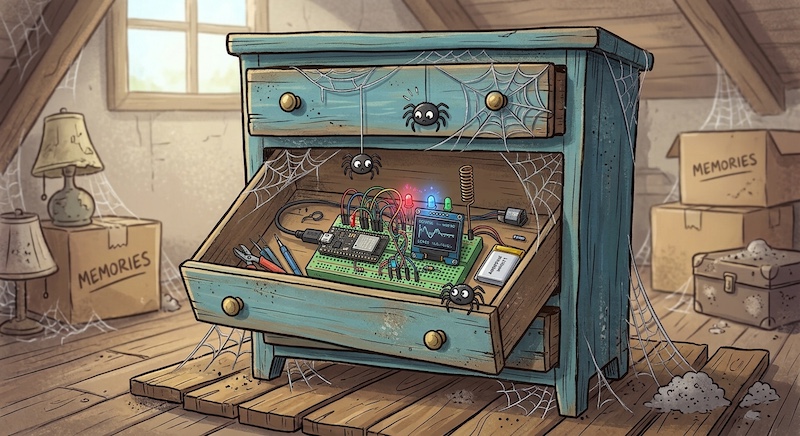
Fast forward to earlier this year, I decided it was time to dust off those parts and finish it. I’d been using AI for coding lately, so I brought in Gemini as a development buddy to help work through the firmware. Reusing my old M5Stick logic as a starting point, I had the matrix up and running in just a few weeks.
Then I realized something: in our family, we have a tradition of making our own Christmas gifts. I thought these word clocks would make great presents, so I ordered two additional sets of parts from Electrodragon. I expanded the code to support French and German, added a capacitive touch sensor on a brass standoff to cycle through languages, built a simple Wi-Fi setup portal, and designed a custom 3D-printed enclosure.
I named it TicTalk, and after almost four years sitting in a drawer, they are finally neatly packaged and ready as Christmas gifts.
TicTalk Quick Start: Zero Wiring Required
Now that TicTalk is built and ready to gift, here is a quick rundown of how to actually interact with it day-to-day.
Powering On & Controls
- Power Switch: Use the push-button switch on the back to turn the clock on or off. The built-in fuse holder keeps everything safe.
- Changing Languages: A quick tap on the brass standoff on the back of the clock cycles through the four available languages: Español, English, Français, Deutsch
Your selection is saved automatically in non-volatile storage, so it remembers your preferred language even if you unplug it.
2. Entering Setup Mode (Wi-Fi & Timezone)
Automatic Entry:
If you are powering on a fresh clock for the first time or if TicTalk cannot find its saved Wi-Fi network, it will enter Setup Mode automatically.
Manual Entry:
If you need to change networks later or update your timezone settings, perform a long hold (over 3 seconds) on the brass touch standoff on the back of the clock to manually force Setup Mode.
Setup Steps:
- Once in Setup Mode, the clock launches a local Wi-Fi network named something like
TicTalk-XXXX. - Connect to
TicTalk-XXXXusing your phone, tablet, or laptop. - A setup page will pop up automatically. Select your home Wi-Fi network, enter your password, and choose your regional timezone (with automatic DST handling, or custom numeric offsets, just in case politicians finally decide to abolish DST).
- Save your settings. TicTalk will automatically reboot, connect to your network, and sync the time via NTP.
Ambient Color Transitions
Hey, did you notice how the text colors shift throughout the day? Nope, you are not imagining it! TicTalk features time-of-day normalized color blending. It transitions smoothly from bright white in the morning (6 AM) through warm oranges and soft light blues, settling into a deep night blue by midnight.
Under the Hood
For all the gory details on how I built TicTalk, check out this repository.
Until the next project gets pulled out of the drawer, happy hacking!